How To Make A Video With PostNitro?
PostNitro turns your designs into animated videos for Reels, TikTok, Shorts and every other platform.
Each element on a slide can come in, move and leave on its own timing. Slides change with transitions, music plays under the whole video, and a voiceover can narrate it. What you see when you play it in the editor is exactly what you download and post.
A video can be up to 2:00 (2 minutes) long.
Start a video
From the video maker
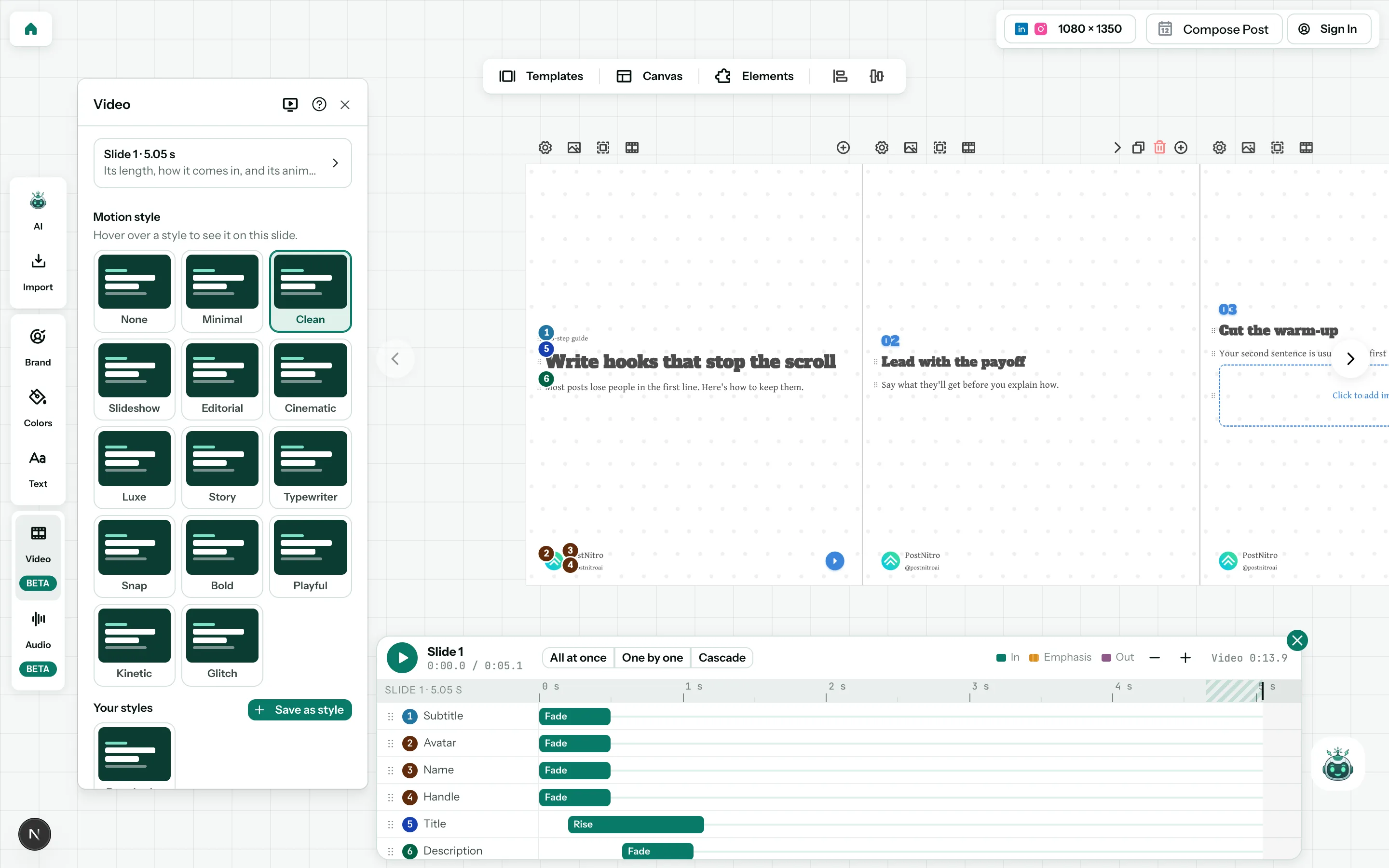
Create a new design and choose Video. Pick a template, and the editor opens with Nitro AI on the right. Your video’s motion and sound are in the left menu, under Video and Audio.
From a carousel or an image
Any carousel or image can become a video.
In the carousel or image maker, click Animate at the top of the editor, on the right. While a side panel is open, or on a small screen, it’s in the ⋯ menu there. PostNitro asks first: click Make it a video. Your design becomes a video, its slides animated with the gentle Clean style, or with the animations they had before, and Video opens in the left menu.
You can also ask Nitro AI to animate it: see Make a video with Nitro AI.
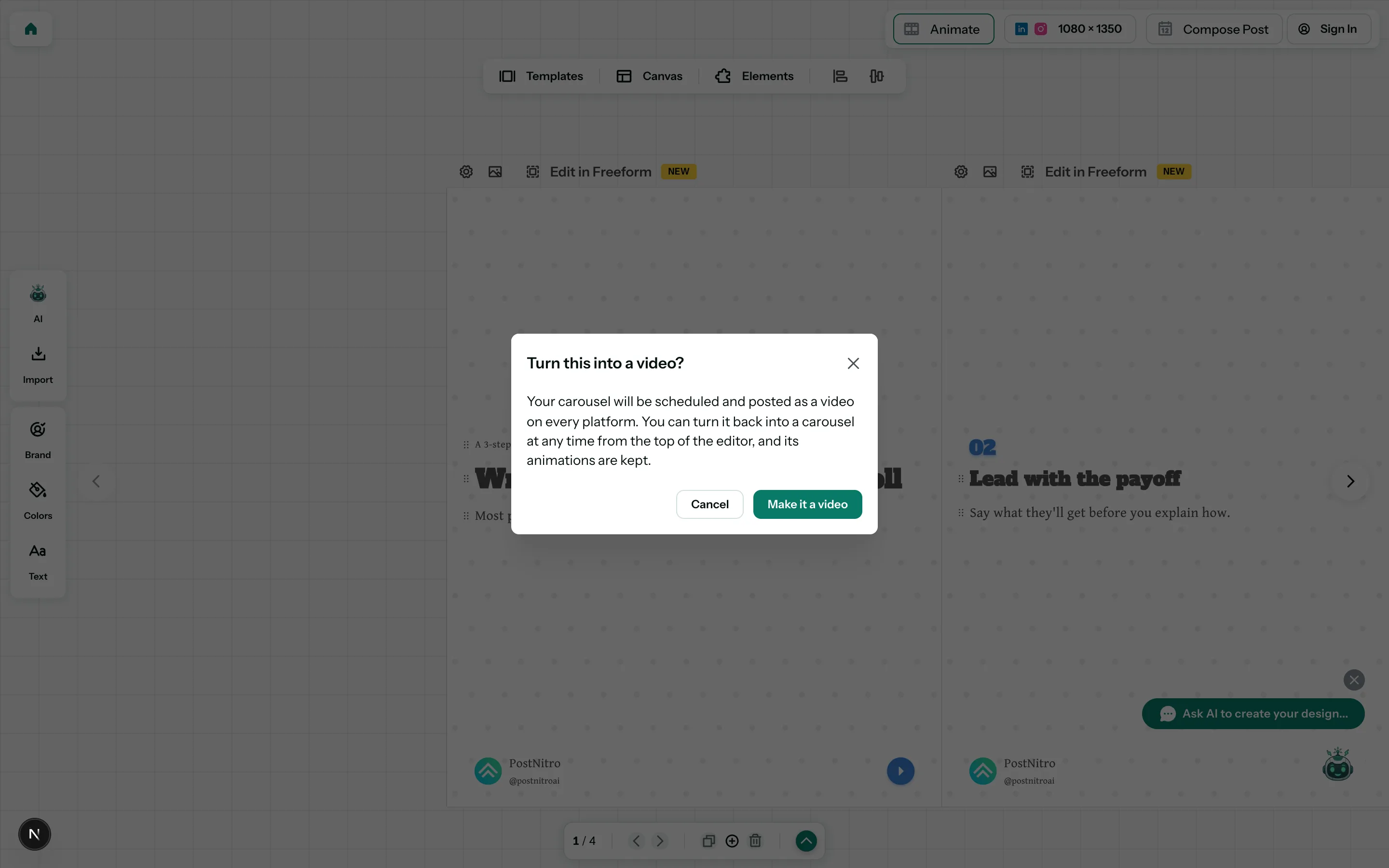
Your design will be scheduled and posted as a video on every platform. You can turn it back into a carousel or an image at any time: click Animated at the top of the editor (in the ⋯ menu there, Turn back into a carousel or Turn back into an image), and PostNitro asks first. Its animations are kept, in case you make it a video again.
Where things are
On a video, the left menu has two more tools, after Text:
- Video: it opens on the whole video: a motion style, built in or your workspace’s own, and the transitions between slides. Open a slide from the row at its top for what moves on that slide, in what order and for how long, how long the slide lasts, how it comes in, and your workspace’s saved sequences; pick an element for its own animation.
- Audio: two tabs. Voiceover has the video’s voiceover and captions, then its script slide by slide; Music has its track.
The chip at the top of a slide opens Video on that slide, and Animate on the toolbar of a selected text opens it on that text. A slide’s animations can go to other slides, or be saved for your workspace. On a computer, the timeline under the canvas shows the slide’s animations against its time: open it with the timeline button on the slide bar.
On paid plans, Nitro AI can make a video, and animate, time, style, narrate and score it for you: see Make a video with Nitro AI. On the free plan you do it by hand, in Video and Audio, and preview it as you go.
The quickest way to start is to pick a motion style. It animates every slide in one click, and you can fine-tune any slide afterwards.