How To Animate The Elements On A Slide?
Every element on a slide (its title, text, pictures, list items, button and your branding) can have up to three animations:
- In: how it comes in.
- Emphasis: something it does while it’s on screen: a pulse, a float or a wiggle. It starts once the element has come in, and repeats until the element leaves, with its Out or at the end of the slide, unless you set Repeat. Ken Burns slowly zooms in on a picture or the background and drifts it, once, until the element leaves.
- Out: how it leaves.
Animations are in Video, in the left menu. It opens on the whole video: click the slide’s row at its top, or the chip at the top of a slide, to open that slide, then pick an element to open its animation. The path at the top, such as Video › Slide 2 › Title, takes you back up.
On a computer, the slide’s timeline opens at the bottom, in the slide bar’s place: click the timeline button on the slide bar, or Open timeline on a slide in Video. Its top row has ▶, the slide and its time, All at once, One by one and Cascade to line the slide’s animations up in one click, zoom, the whole video’s length and Hide timeline. While it’s open, each slide’s own toolbar has the slide bar’s buttons: move, duplicate, delete and add. Each element has a row, numbered in the order things come in and coloured as the element is on the slide, with its In, Emphasis and Out on it. The row of the element you picked, or of the bar you’re dragging, is tinted in its colour. Each bar is placed against what its own row shows:
- An In starts at a time. Drag it to start earlier or later: the first time you do, the slide is placed by hand, the timeline says Custom, and every In stays where it is until you move it. All at once, One by one or Cascade lays the slide out again, and keeps it laid out as its text changes.
- An Emphasis plays once its element has come in: drag it anywhere between its In and its Out.
- An Out ends with the slide: drag it left to leave earlier, or its left end to make it longer.
- Drag a bar’s end to make it longer or shorter, and the dark line at the slide’s end to set how long the slide stays. The slide’s last moments are shaded where the next slide comes in.
- On a laid-out slide, drag an element’s name onto another to change the order things come in.
- Click a bar or a name to open that element’s animation in Video; Not animated · animate starts one for an element that doesn’t move yet.
- Drag along the ruler to see any moment, and click Back to editing to carry on.
Click Hide timeline to put it away.
Steps
Pick an element
With Video open, click the element on the slide, or its name in the timeline under the canvas. You can also select a text and click Animate on its toolbar. On a phone, tap it in the slide’s list in Video, where elements that don’t move yet come after the animations.
For elements that repeat, such as list items or grid cells, choose whether to animate This one or All of them.
Choose an animation
Pick In, Emphasis or Out, then click an animation. It plays on the slide straight away, so you can see it.
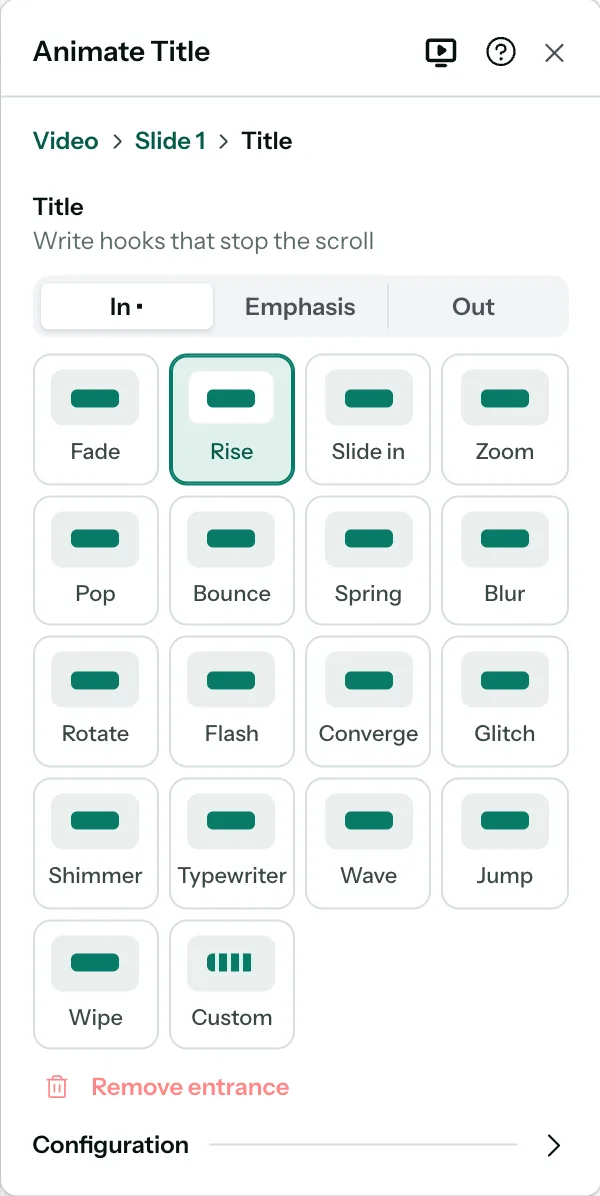
Text has a few more animations than other elements, such as Typewriter and Wave. Text with highlighted words (the text bar’s Highlight or Boxed) also has Highlight sweep, which draws those words in like a marker, one after another. Text with numbers, such as an infographic’s figures, has Count up, which counts them up from zero in the form you wrote them; years are left alone.
Fine-tune it
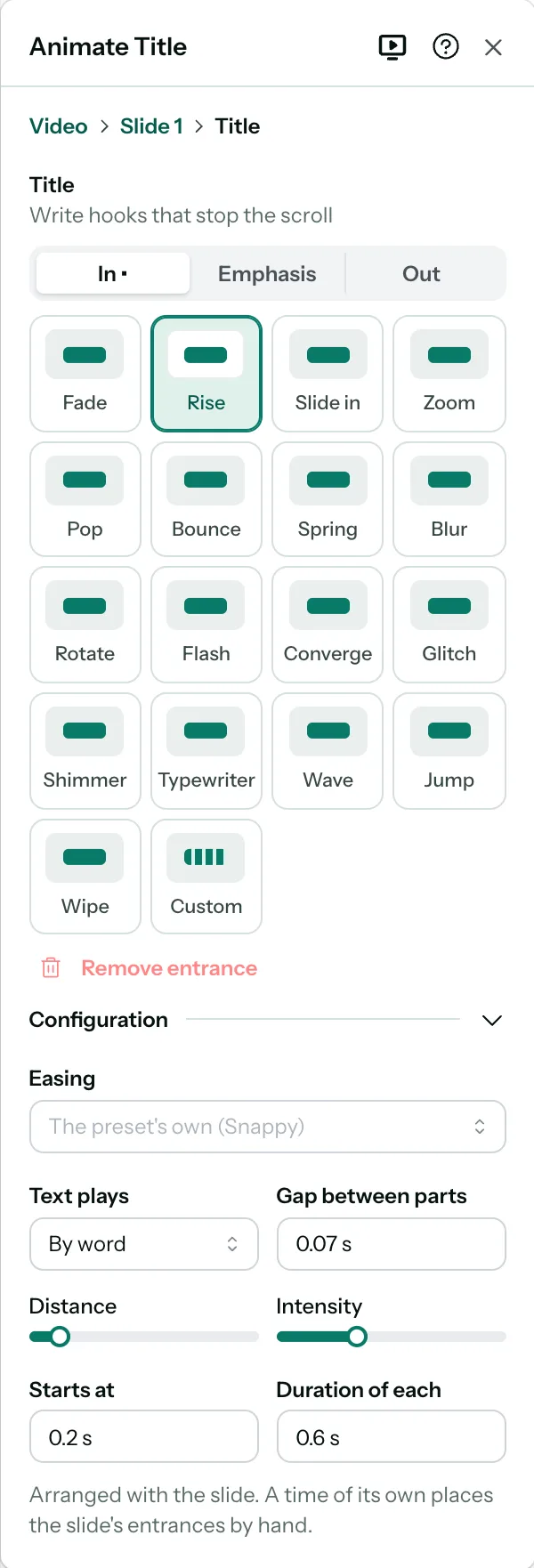
Click Configuration, under the animations, to open the rest. It opens by itself for Custom, and once you’ve opened it, it stays open for every element until you close it or reload the page. There you can adjust:
- Easing: how the animation speeds up and slows down.
- Text plays: Whole, By line, By word or By letter.
- Gap between parts: the time between each line, word or letter.
- Distance and Intensity: how far it travels, and how strong it is.
- Repeat (emphasis only): a number of times, or Until it leaves, which a new emphasis starts with: until its Out, or the end of the slide.
- When it plays, and its Duration: an In’s Starts at, an Emphasis’s After it comes in, an Out’s Before the end (see Set the order and timing).
To take an animation off, click Remove entrance, Remove emphasis or Remove exit.
Make your own
When no animation does quite what you want, click Custom, the last one. It starts as a simple rise for In and Out, or a gentle beat for Emphasis, and shows its Keyframes: points along the animation, from its start to its end.
- Pick a keyframe on the line, then set where the element is at that point: its Opacity, Size, X and Y (how far it has moved, in pixels; right and down are positive), Rotation and Blur.
- Position moves a keyframe along the animation.
- Add puts a new keyframe halfway to the next one, where the element already is then, so nothing changes until you edit it. Remove takes the picked one out.
- Easing to the next sets how it moves on to the next keyframe. Left empty, it follows the animation’s Easing.
An In animation always ends where the element is in your design, so its last keyframe stays at rest, and Out plays it backwards. An Emphasis starts and ends at rest, so it can repeat smoothly.
On paid plans, Nitro AI can make custom animations too: describe the movement you want.
Set the order and timing
On a computer, the timeline under the canvas shows each animation against the slide’s time, in the order things come in. The ruler counts from the start of the slide.
- A slide is laid out, All at once, One by one or Cascade, until you place something by hand: then it’s Custom. Pick one in the timeline’s top row, or under How things appear in Video, to lay it out again.
- Click a bar or a name to open its animation in Video. There, an In has Starts at, the time it starts (giving it one places the slide by hand); an Emphasis has After it comes in; an Out has Before the end. Each has its Duration.
- Drag a bar to move it, or drag its end to change how long it plays. With a bar selected, the arrow keys move it, and Shift with the arrow keys changes how long it plays.
- On a laid-out slide, drag an element’s name onto another to change the order things come in.
- To put the animation away, press Esc: Video goes back to the slide.
On a phone, Video lists the slide’s animations under Sequence. Tap one to open it; on a laid-out slide, the up and down buttons change the order things come in.
Save a sequence to use again
A slide’s animations, its sequence, can be saved for your workspace and given to any slide of any design. In Video, open the slide and click Your sequences.
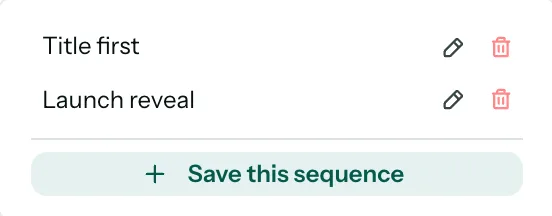
- Save this sequence keeps this slide’s animations under a name you give them. It keeps the animations only: the slides you use it on keep their own length and transition.
- Hover over a saved sequence to see it play on the current slide. Nothing changes until you click.
- Click a saved sequence to give this slide its animations, element by element, as Apply to other slides does. It’s one step to undo. To give it to the other slides as well, use Apply to other slides afterwards.
- The pencil renames a sequence, and the bin deletes it, after asking.
Everyone in your workspace sees the same saved sequences, and a rename or a delete is for all of them. Slides a sequence was used on keep their animations when it’s deleted.
Saved sequences are part of paid plans. On the free plan, Your sequences carries a crown and offers the upgrade.
Play it
Press Space to play the slide in place, and again to pause it. Click the slide or press Esc to go back to editing. To watch the whole video, click Preview video: see Preview and download.
Note: Right-to-left text, and Chinese, Japanese and Korean text, comes in by line, word or letter in place, without moving. That way its lines break exactly where you see them in the editor.