How To Add A Voiceover And Captions To A Video?
A voiceover narrates your video slide by slide. PostNitro writes a script from your slides, you read it over, then you record it. Each slide stays up for as long as its narration, and captions show each phrase as it’s spoken, so the video works with the sound off too.
It’s all in Audio in the left menu, on its Voiceover tab: the voiceover first, then the script, a row for each slide. The music has a tab of its own.
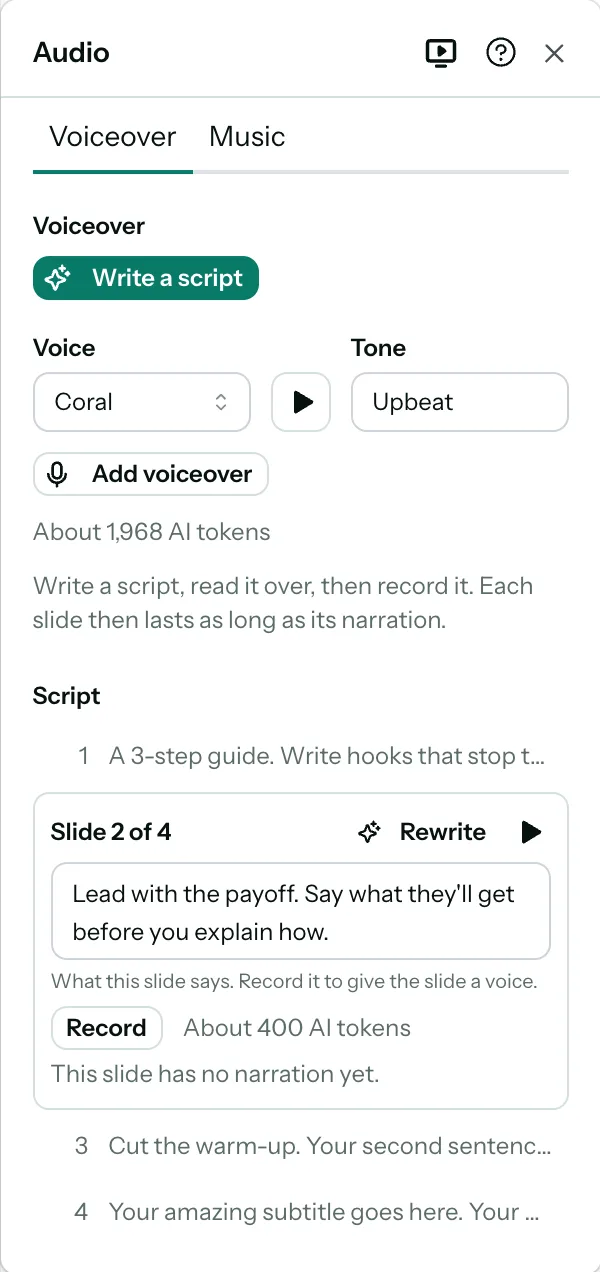
Writing, rewriting and recording are part of paid plans, and the design needs to be saved first. On the free plan those buttons carry a crown and offer the upgrade; you can still edit the script by hand and hear every voice.
Steps
Write the script
Under Voiceover, click Write a script. PostNitro writes a line for every slide, in your design’s language. It opens with a hook and ends with your call to action, and it can add to a slide the way a presenter would: explain it, give an example, or lead into the next slide. It doesn’t make up numbers, quotes or claims your slides don’t make, and it doesn’t read out handles, links, hashtags or emoji.
If some slides have a script already, PostNitro asks first. Click Replace all to write every slide again, or Only those without one.
To narrate the slides’ own words instead, record without writing: until a script is written, each slide’s script is its own text. Once one is, Read the slides puts every slide’s own words back.
Read it over
The slide you’re editing opens in the script, with its line in a box. Click a slide’s row to open it, or go to the slide on the canvas. Change the words as you like: they’re kept on the slide, with the design. A slide whose script has changed since it was recorded is marked with a pencil.
In a slide’s box:
- Rewrite writes that slide’s line again, to flow with the slides around it.
- Play plays the slide.
- Record records only that slide. Once it’s recorded, Record again is there when its script, the voice or the tone changes.
- The speaker turns that slide’s narration off and on, without losing it: see Turn it off and on.
- Remove narration takes that slide’s recording off. Its words stay in the box.
Pick a voice and a tone
Pick a Voice, and a Tone: Upbeat, Calm, Professional or Storyteller, or describe it in your own words, such as “humorous and jolly” or “breathless, like a sports commentator”, and press Enter. The tone sets both how the script is written and how it’s spoken. Both are saved with the video, and slides recorded in another voice or tone are marked to be recorded again.
To hear a voice first, click ▶ beside Voice: it says “Hello from PostNitro” in the voice and tone you picked (in Upbeat for a tone in your own words). In the list of voices, each one has its own ▶, which plays it without picking it. The samples are free to play, on every plan.
Record it
Click Add voiceover to record every slide. Each slide then lasts as long as its narration. If you set a slide’s length yourself and its narration runs longer, it’s cut off: the slide’s row is marked, and its length says so. See Set slide timing.
To record every slide again, for example in another voice, click Update voiceover. It leaves out slides whose narration is turned off. To take the recordings off every slide, click Remove voiceover; their words stay in the script.
Turn it off and on
Turn one slide’s narration off with the speaker on its row, or in its box, and the whole video’s with the switch beside Voiceover. Nothing is lost: the recording and its script are kept, and turning it back on brings back the same recording, with no tokens taken.
While it’s off, it isn’t heard anywhere: in the editor, in the preview or in the MP4. It shows no captions, and the music isn’t turned down for it. The slide takes the length that fits it without narration: on Auto, its animations and the time to read it. A length you set yourself stays.
While the whole video’s voiceover is off, you can still write and edit the script, but recording waits until it’s on.
Captions
Captions are on for a narrated video. Each phrase shows low on the slide as it’s spoken. Turn them off with Show captions, under Voiceover. Under it, set how they look:
- Size: Small, Medium or Large, or Custom, a size in pixels from 16 to 120.
- Font: Title (your title font), Body (your body font), or Other, any of the editor’s fonts, your workspace’s uploaded fonts among them where your plan has them.
They look the same in the editor, the preview and the MP4, and the Download video window shows them beside the music. Turning captions off and on keeps their size and font. Captions are free on every plan.
What it costs
A voiceover uses your plan’s AI tokens, the same tokens Nitro AI uses:
- Recording takes 5,000 tokens per minute of narration, measured on each slide’s recording. A 30-second voiceover takes 2,500.
- Recording a slide again takes its tokens again. Removing a recording gives none back, and a recording that fails takes none.
- Writing a script is charged on what it actually uses, as Nitro AI’s replies are.
Before you record, Audio shows about how many tokens it will take, and says so if that’s more than you have left, with a link to get more. Once this period’s tokens are used up, recording is refused until you get more.
Each recording and each script written shows as a line in the AI chat, such as Voiceover recorded · 4 slides · 24 s. Hover over it to see what it was charged.
Ask Nitro AI
In the AI chat of a video, ask Nitro AI to add a voiceover, and say how it should sound if you like, such as calm or professional. Nitro AI writes the script and saves it on your slides, then shows it to you with the tokens recording will take. It always asks before it records: say yes to record it, or change the script in Audio first and record it there. It records nothing while the video’s voiceover is turned off, and leaves out slides whose narration is off.
Nitro AI can also change the voice or the tone, turn the narration off or on for the video or some slides, set a slide’s script to your own words, take recordings off, and set the captions’ size and font. A change of voice or words marks the slides it touches to record again, and Nitro AI offers to. See Make a video with Nitro AI.
Nitro AI’s voiceovers are part of paid plans, as its animating, timing and styling of a video are. On the free plan it offers the upgrade instead.
Tip: Music plays quieter while a slide is being narrated, so the voice is easy to hear. See Add music.