How To Animate A Whole Video With A Motion Style?
A motion style gives every slide of your video its animations and the transitions between slides in one click. Each style animates what a slide actually has: titles, text, pictures, lists, testimonials and your branding.
Steps
Open Video
In the left menu, click Video. The styles come first, each a small card that plays the style while you point at it, with your workspace’s own under Your styles; the transitions between slides follow. Your workspace’s saved sequences are under Your sequences, once you open a slide. Its music and voiceover are in Audio.
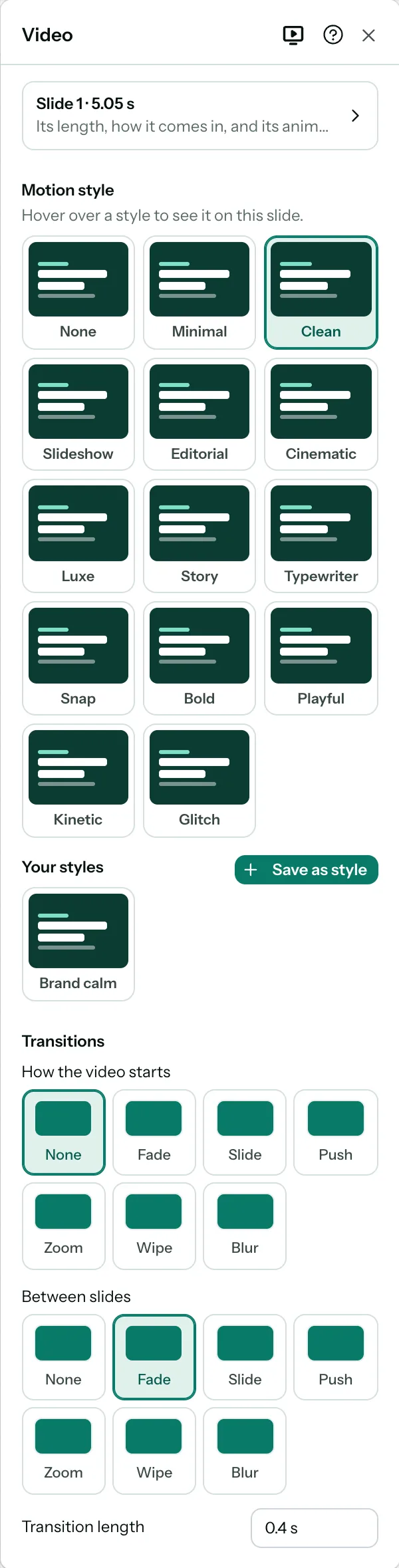
See a style before you apply it
Hover over a style to see it play on the current slide, and read what it does under the styles. Nothing changes until you click.
| Style | What it does |
|---|---|
| None | Nothing moves; each slide holds for its reading time. |
| Minimal | Everything fades in together, with quick cross-fades. |
| Clean | Gentle fades and rises, one after another. |
| Slideshow | Slides swipe across while pictures slowly zoom. |
| Editorial | Headlines and pictures wipe in, and pages wipe across. |
| Cinematic | Slow blurs and fades that linger. |
| Luxe | Letters gather slowly and the button glints. |
| Story | One part at a time, with words popping in like captions. |
| Typewriter | Text types itself in, with straight cuts. |
| Snap | Everything zips in from the side, with quick slide changes. |
| Bold | Pops and slides, pushing from slide to slide. |
| Playful | Bouncing letters and springy text, with slides pushing up. |
| Kinetic | Waves, jumps and turning slides, with a pulsing button. |
| Glitch | Text glitches into place, with hard cuts. |
Apply it
Click a style to apply it to every slide.
If your slides already have animations, PostNitro asks before replacing them. Click Apply to replace them. Changed your mind? Press Ctrl+Z (⌘Z on a Mac) to undo it.

After applying a style, you can still change anything on any slide: see Animate elements.
Save your own style
Once a video moves the way you want, save its motion as a style for your workspace. Under Your styles, click Save as style and name it. Everyone in your workspace can then use it on their videos.
A style keeps the video’s motion, not its music or voiceover:
- For each kind of slide (the intro, a content slide with a picture or without one, and the outro), what the first slide of that kind plays: its animations, its length and its transition. A slide that still plays a built-in style as it came is kept as that style, so it fits each new slide’s own content.
- How the video starts.
Your styles work like the built-in ones. Hover over one to see it on the current slide, and click it to apply it to every slide; if your slides already have animations, PostNitro asks first. Each slide takes after the saved slide of its kind, or the nearest kind the style has. An element the saved slide didn’t animate stays still. It’s one step to undo.
To rename or delete a style, point at its card and click the pencil or the bin. Deleting it removes it for everyone in the workspace; videos it was used on keep their animations.
Saved styles are part of paid plans. On the free plan, Save as style carries a crown and offers the upgrade.
Change the transitions
Under Transitions:
- How the video starts sets how the first slide comes in.
- Between slides sets how every slide after it comes in.
For each, pick Fade, Slide, Push, Zoom, Wipe, Blur or None, and how long the transition takes. To give one slide its own transition, see Set slide timing and transitions.