How To Set Slide Length And Transitions In A Video?
Each slide plays its animations, then holds so people have time to read it, then hands over to the next slide with a transition.
The chip at the top of each slide shows how long it plays, such as 2.5 s. Click it to open that slide in Video, in the left menu.
Steps
Set how long the slide plays
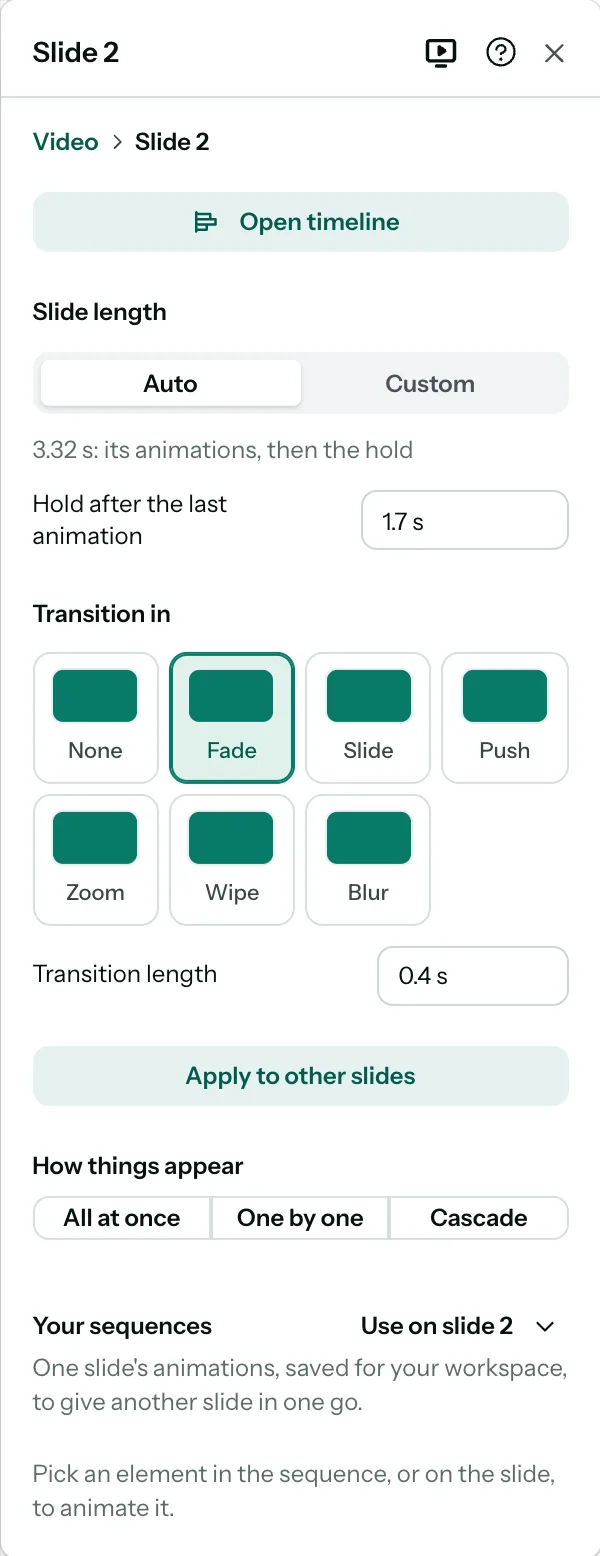
In Video, on the slide, Slide length is at the top.
- Auto: the slide lasts as long as its animations, plus the Hold after the last animation. The hold starts at the time it takes to read the slide, and you can change it. A narrated slide lasts at least as long as its narration: when the narration is what sets it, its length says as long as its narration.
- Custom: type the slide’s length yourself. If its animations run longer, PostNitro tells you that some will be cut short. If its narration runs longer, PostNitro tells you it will be cut off, and the slide’s row in Audio’s script is marked.
A slide’s narration is in Audio, on its Voiceover tab: see Add a voiceover.
Set how the slide comes in
Under Transition in, pick None, Fade, Slide, Push, Zoom, Wipe or Blur. Then set its Direction, where it has one, and its Transition length.
The first slide’s transition is how the video starts, so it’s set in Video in the left menu, under Transitions. The first slide in Video has a link to it.
Apply it to other slides
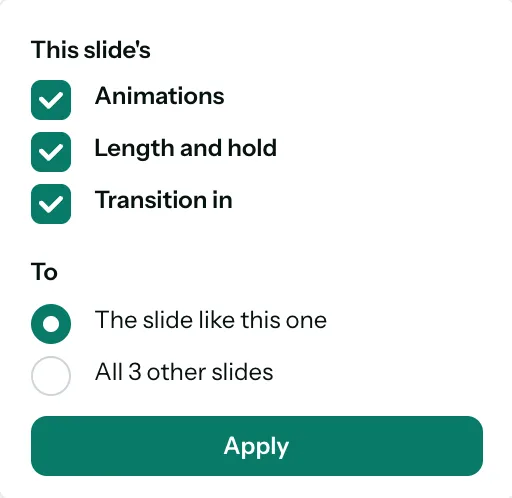
Click Apply to other slides, then choose:
- This slide’s: its Animations, its Length and hold and its Transition in, in any mix.
- To: the slides like this one, or all the other slides. Slides like this one are the same kind: the intro, the outro, or a content slide with a picture or without one.
Click Apply. It’s one step to undo.
Animations go element by element. Each slide gets this slide’s animation for its title, its text, its picture and so on, for the elements it has. An element this slide doesn’t animate keeps its own animation, played after the copied ones. Each slide gets its own copy, so you can still change any of them on its own.
From the first slide there’s no transition to give: its transition is how the video starts. The first slide never takes another slide’s transition either.
To keep a slide’s animations for other designs, save them under Your sequences: see Animate elements.
To set the transitions of the whole video without changing slide lengths, use How the video starts and Between slides in Video instead.
Note: A video made before timed animations shares its length evenly between its slides. The first change you make here switches it to timed animations, and each slide then lasts as long as its animations plus time to read.