How To Preview And Download A Video?
What you see in the editor’s previews is exactly what you get in the MP4, frame for frame.
Play one slide
Press Space to play the slide you’re on, in place, and again to pause it. Click the slide or press Esc to go back to editing.
Watch the whole video
Click Preview video to watch the whole video, with its transitions and music. You can pause, scrub to any moment, mute it and replay it. Press Esc to close it.
On paid plans you can also ask Nitro AI to show you the video, from a slide if you like: “play it from slide 3”. Asked to download it, Nitro AI opens the preview for you to click Download MP4: it never starts a download itself.
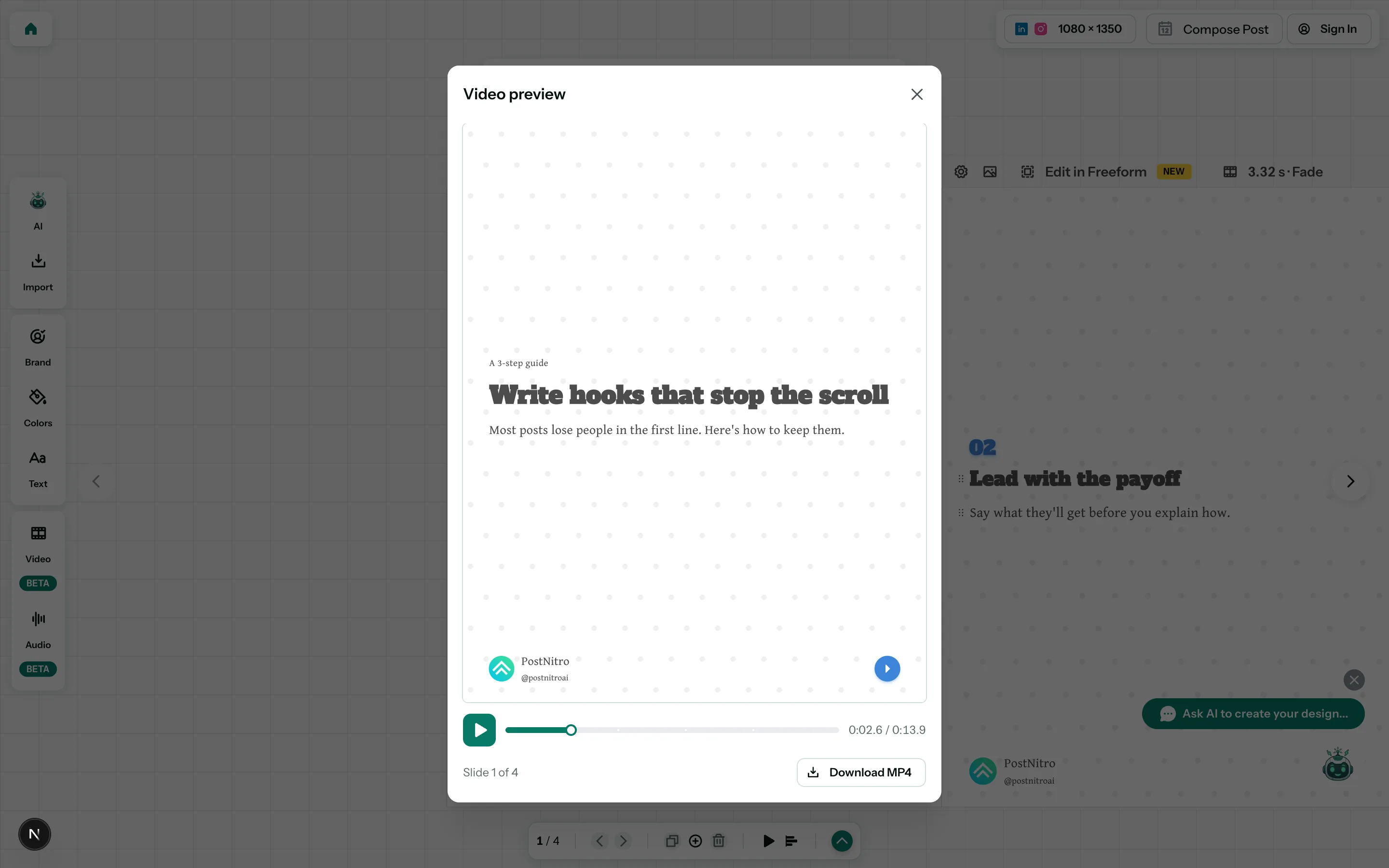
Download it as an MP4
Start the download
Click Download at the top of the editor, or Download MP4 in the video preview. The Download video window shows the video’s size and length.
Under Frame rate, keep 30 fps, or pick 60 fps for smoother motion. A 60 fps video takes longer to render, and its file is larger. Your choice is remembered in this browser for your next download.
Click Download MP4.
A video can be up to 2:00 (2 minutes). If yours is longer, the window says so and Download MP4 stays off until you shorten it: shorten its slides, or take some out.
Wait for it to render
PostNitro saves your design, then renders the video frame by frame and adds the music. You can close the window while it works: the video keeps rendering and downloads when it’s ready.
A design with a GIF in it is recorded in real time, at 30 fps, so it takes about as long as the video itself.
Get the file
When it’s ready, the download starts. If it doesn’t, click Download again.
Note: Downloading videos is part of paid plans. On the free plan you can still edit and preview your video; upgrade to download it as an MP4.